Q: How can I add page numbers to a PDF document using Xodo PDF Studio?
A: In order to add page numbers to a PDF, you need to to add them as a header or footer since the PDF format does not define a specific concept for page numbers.
Follow the steps below:
1. Go to Pages -> Header & Footer -> Add
2. Click on the position that you want to put the page numbers. You can either select a position on header or footer. In this example, I am adding the page numbers in the center of the Footer.
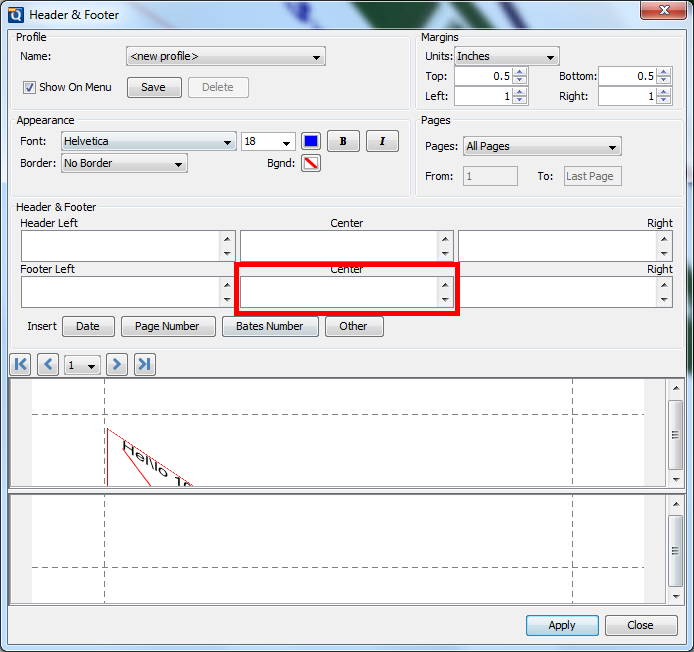
3. Click Page number
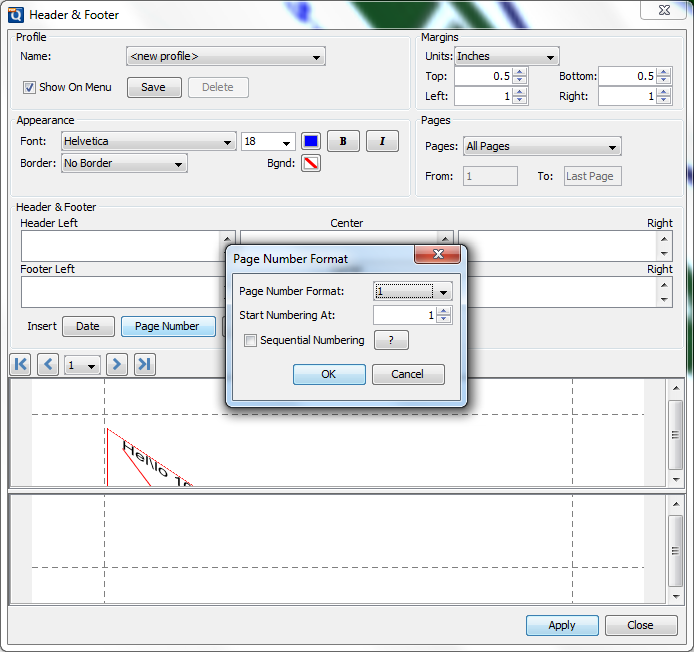
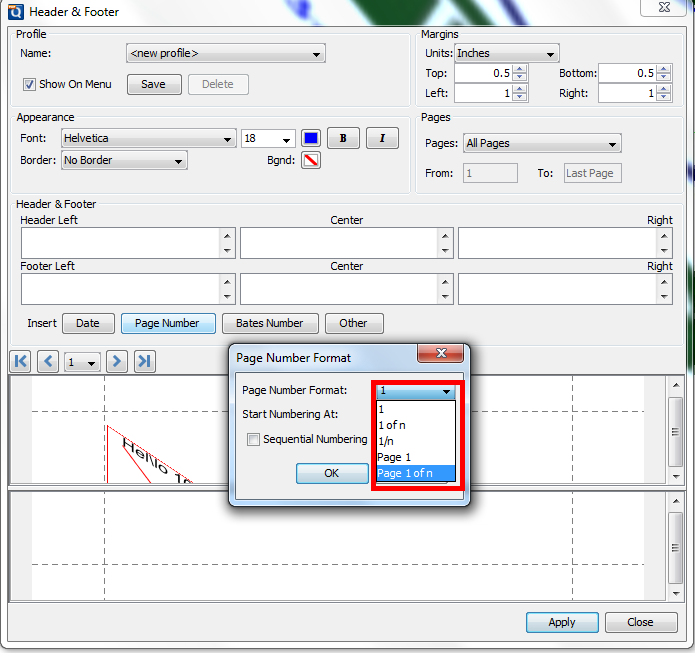
4. You can select the page number format by clicking on the “Page Number Format” dropdown box and also change the value on “Start Numbering At” field -> Click OK to confirm
5. You can also click on “Other” button and view other special fields
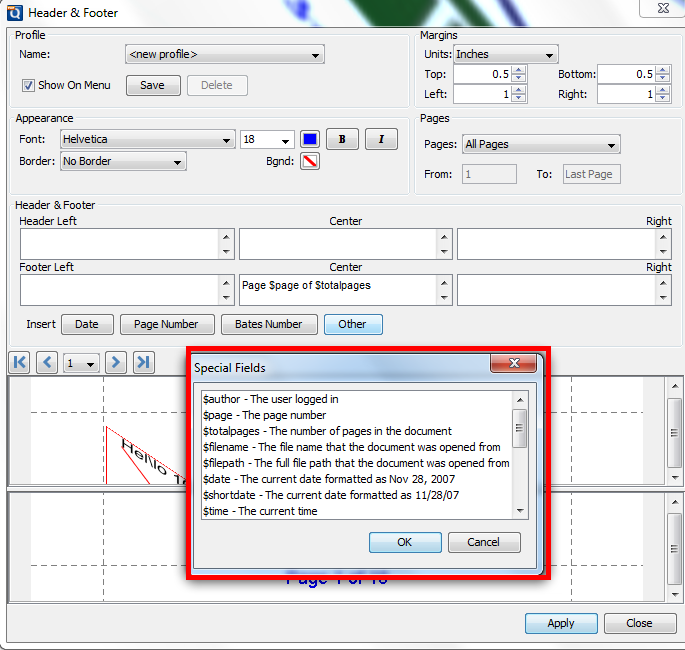
6. Go back to Header & Footer screen, hit Apply and verify the page numbers on the header/footer.
Notes: When you need to remove the page numbers added using header/footer, go to Pages -> Header & Footer -> Remove
or follow instructions in How to delete page numbers in a PDF document
Was this article helpful?
That’s Great!
Thank you for your feedback
Sorry! We couldn't be helpful
Thank you for your feedback
Feedback sent
We appreciate your effort and will try to fix the article