What's New
Xodo PDF Studio 2026.3.0 introduces a redesigned toolbar with a cleaner, more organized layout. All existing tools are still available and are now grouped into categories, making them easier to find and use.
Note: If you prefer the previous interface, you can switch back to the Classic toolbar at any time. See Switching Between the New and Classic Toolbar below.
Toolbar CategoriesThe toolbar is organized into categories across the top of the application.
|
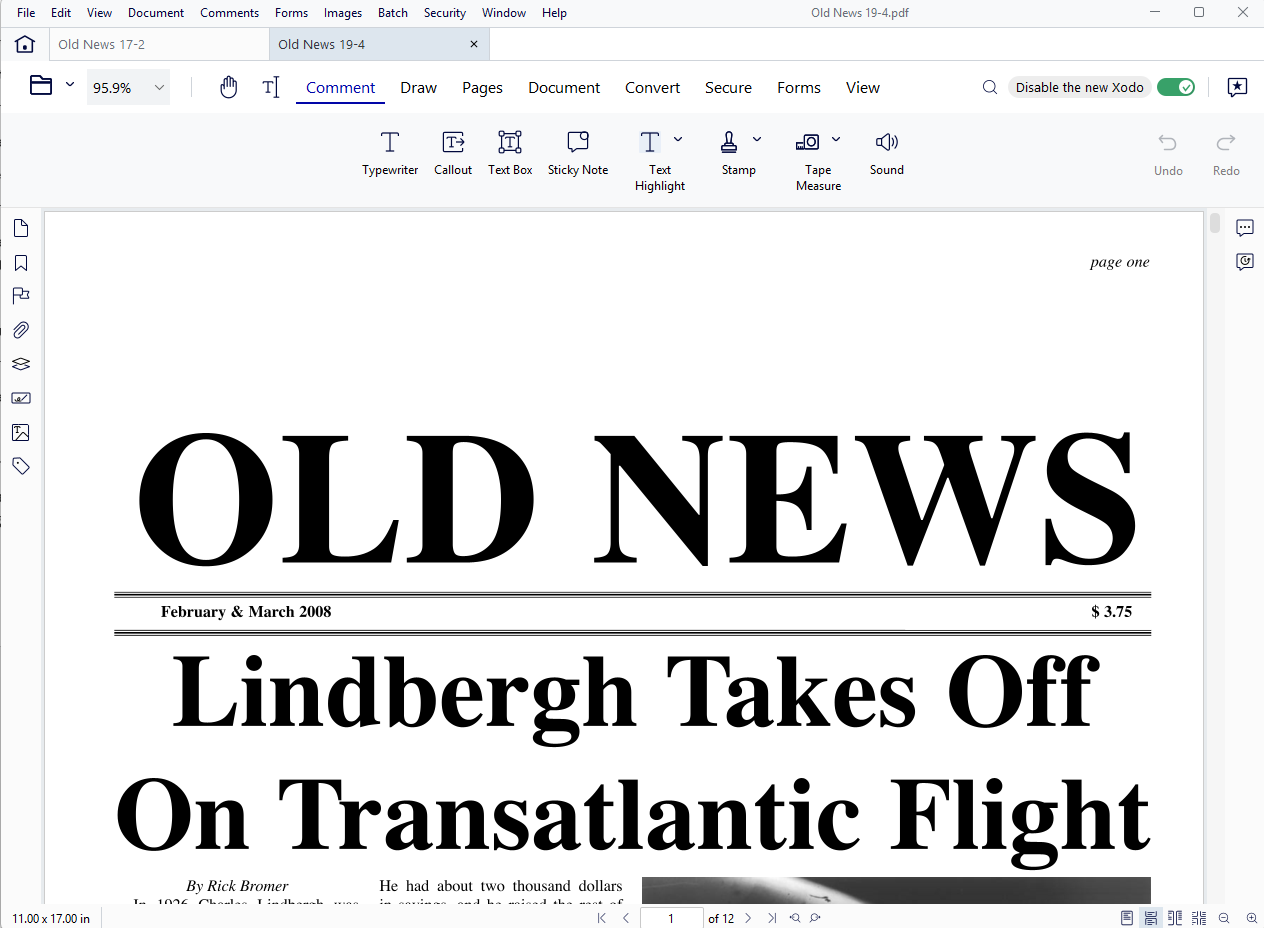
Tool Labels
Tool names can be displayed below each icon to make tools easier to identify.
To toggle labels:
- Right-click anywhere on the toolbar and enable or disable labels.
- Or open Preferences and change the label setting.


Active Tool Indicators
The currently selected tool is highlighted so you can easily see which tool is active. For markup tools, the selected color is also displayed on the toolbar.

More Menu
If there isn't enough space to display all tools, additional commands are available from the More menu.

Common Tasks
Edit Text or Images
- Open the Document category.
- Select Edit Content, Add Text, or Add Image.
Add Comments or Highlights
- Open the Comment category.
- Select the desired markup tool.
Manage Pages
- Open the Pages category.
- Select Rotate, Delete, Crop, Insert, or Reorder.
Convert Files
- Open the Convert category.
- Choose the conversion format and follow the prompts.
Secure Documents
- Open the Secure category.
- Select the protection option you want to use.
Key Changes from Previous Versions
- Tools are organized by task instead of a ribbon layout.
- Conversion tools are grouped under the Convert category.
- Tool labels can be displayed beneath icons.
- Active tools and selected colors are easier to identify.
- All familiar functionality remains available.
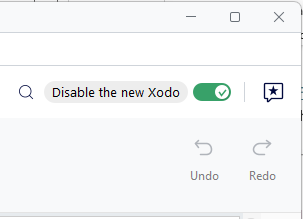
Switching Between the New and Classic Toolbar
You can switch between the new and Classic toolbar at any time. Your preference is remembered the next time you open Xodo PDF Studio.
Need Help?
For additional assistance, visit the Xodo PDF Studio Knowledge Base or select Help > Email Support within Xodo PDF Studio.
Was this article helpful?
That’s Great!
Thank you for your feedback
Sorry! We couldn't be helpful
Thank you for your feedback
Feedback sent
We appreciate your effort and will try to fix the article