Overview
Starting with Xodo PDF Studio 2026.3.0, you can switch the application's new Toolbar interface to Dark Mode for a more comfortable viewing experience, especially in low-light environments.
Enable Dark Mode
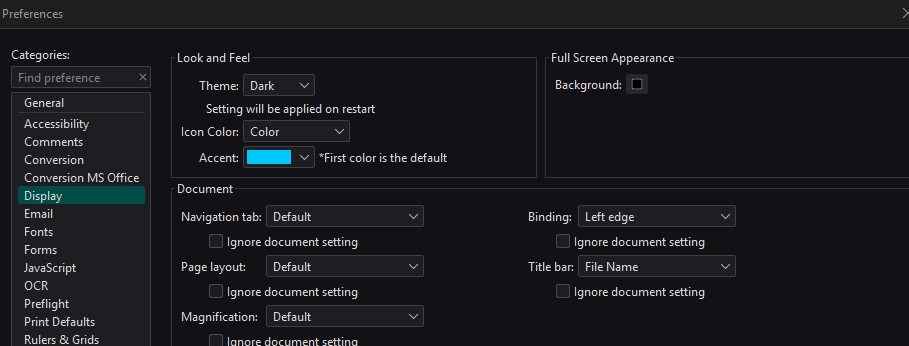
- Open Preferences.
- Select Display from the left navigation panel.
- Under Look and Feel, locate the Theme setting.
- Choose Dark from the dropdown menu.
- Restart Xodo PDF Studio to apply the change.
What Changes?
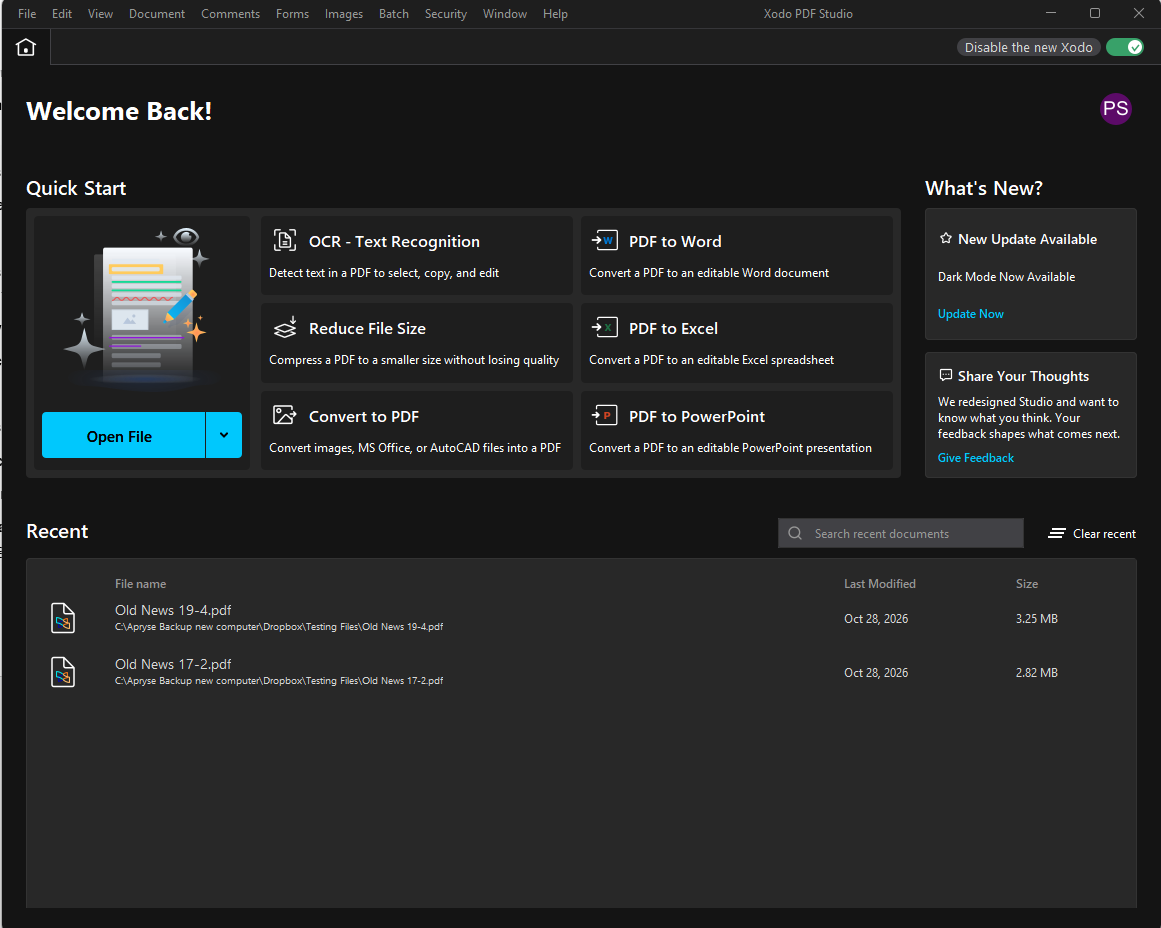
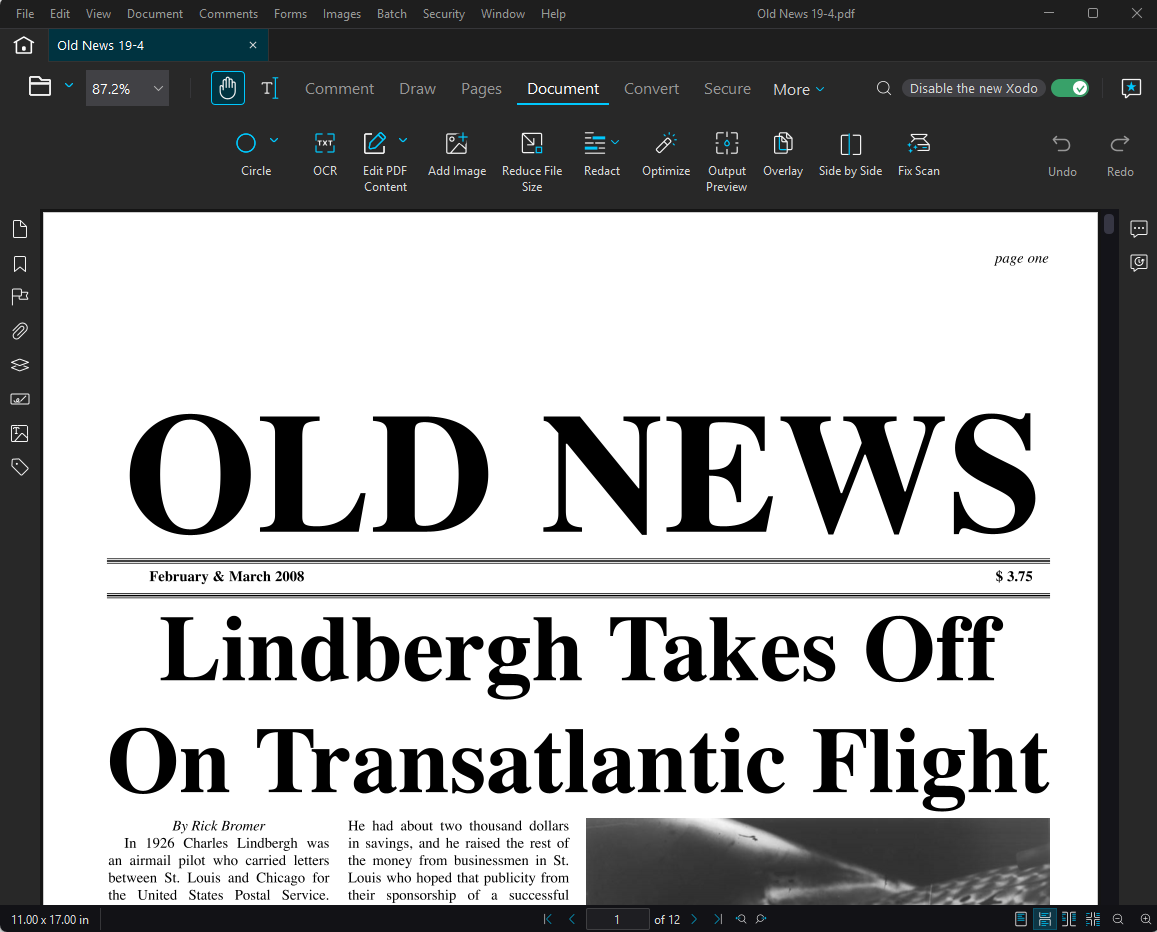
When Dark Mode is enabled, Xodo PDF Studio user interface adopts a darker color scheme across menus, toolbars, panels, and application windows.
Notes
- Dark Mode is available in Xodo PDF Studio 2026.3.0 and later.
- A restart is required after changing the theme.
- You can switch back to the default light appearance at any time by selecting a different theme in Preferences > Display.
Need Help?
If you experience any issues enabling Dark Mode, contact our support team through Help > Email Support within Xodo PDF Studio.
Was this article helpful?
That’s Great!
Thank you for your feedback
Sorry! We couldn't be helpful
Thank you for your feedback
Feedback sent
We appreciate your effort and will try to fix the article