Q: How can I change the paper size in a document?
A: Start by going to Pages -> Resize Pages.
Note: The Resize Pages dialog is also accessible from the mouse menu on page thumbnails.
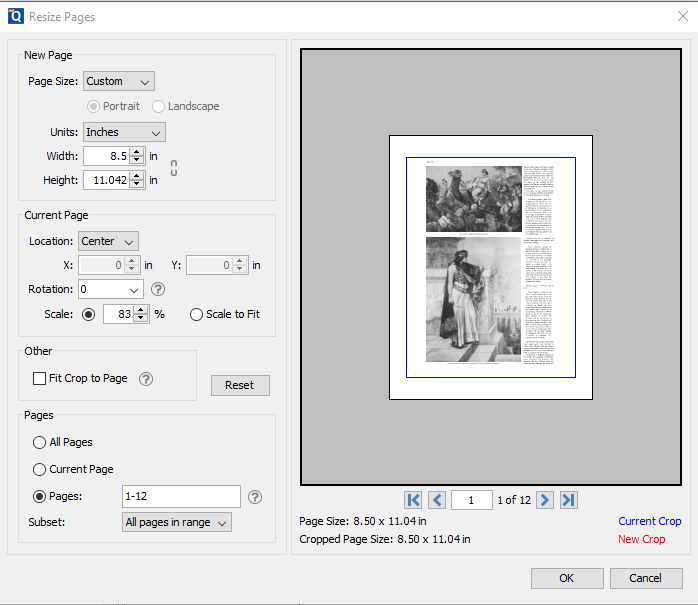
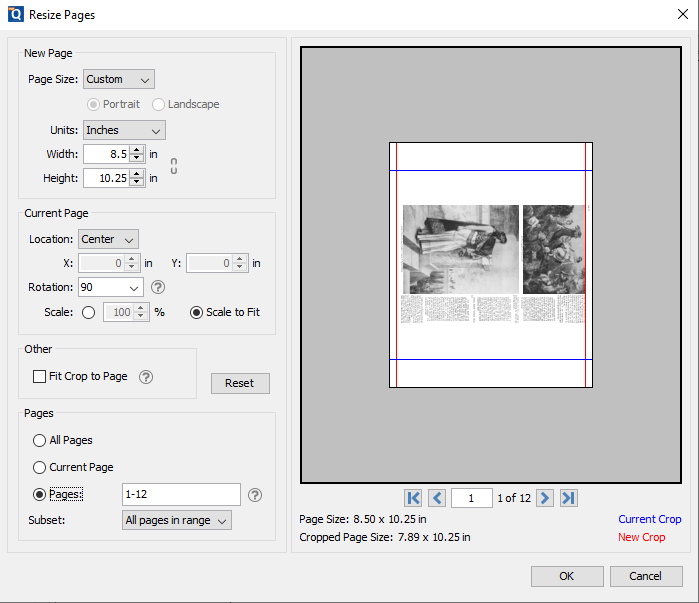
In the Resize Pages dialog, you can select standard paper size for the new page size or set a custom page size. You can also change the width, height, rotation, and position the current page within the new page… All the changes will be displayed in the preview area.
The blue box in the preview is the original crop box from the document and the red box is the new crop box that will be applied when the page is resized.
Tips: make sure to look at the Preview area before applying the changes.
Was this article helpful?
That’s Great!
Thank you for your feedback
Sorry! We couldn't be helpful
Thank you for your feedback
Feedback sent
We appreciate your effort and will try to fix the article